
Enabling mTLS authentication on Mercury controllers
2026-04-27Last updated
You must enable mutual TLS (mTLS) authentication on eligible Mercury controllers added to your Synergis™ Cloud Linkunit to establish certificate-based secure communication.
What you should know
- Your Synergis Cloud Link unit must be running Synergis Softwire 12.2.0 or later.
- Mercury LP or MP controllers must be online and running firmware 2.9.0 or later to
become eligible for mTLS authentication.Note:If eligible Mercury controllers are added to the Synergis Cloud Link unit after they are upgraded to firmware 2.9.0 or later, they automatically connect using mTLS authentication, and no manual action is required.
- After you enable mTLS on a Mercury controller, the setting cannot be reverted.
Procedure
-
Next to an eligible Mercury controller, click Enable mTLS.
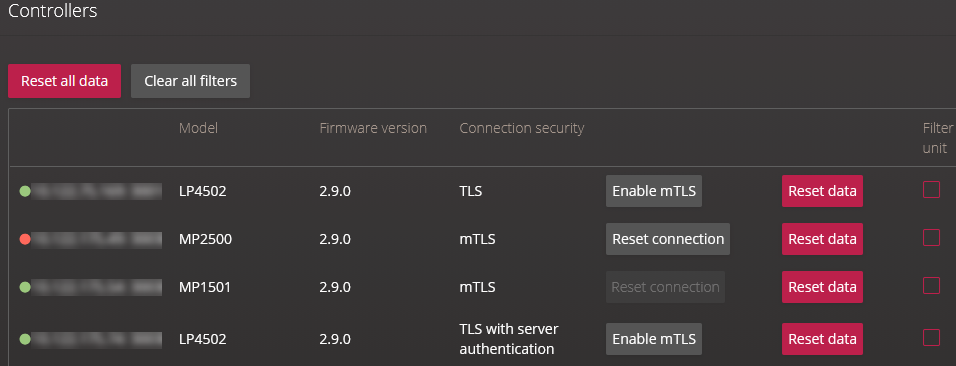
The Mercury controller reconnects using mTLS authentication.
Note:If the Mercury controller connects using a security level other than mTLS, the controller certificate may be invalid and you must contact the Genetec™ Technical Assistance Center to resolve the issue.