
Configuring and adding secure I/O modules in the Synergis Appliance Portal
2026-02-02Last updated
To add secure I/O modules to a Synergis™ Cloud Link unit, configure the I/O modules using the Synergis™ Appliance Portal.
Before you begin
What you should know
- Ensure that each I/O module connected to the same RS-485 channel is assigned a unique address.
- When Programming mode is enabled, you can only have one I/O module connected to the RS-485 channel at a time.
- When connecting I/O modules in a daisy chain, ensure that all I/O modules share the same bit rate.
Best Practice:
Adding multiple secure I/O modules on the same RS-485 channel increases
latency. Install an end-of-line termination resistor on the last module in the RS-485 chain
to prevent communication collisions.
Procedure
-
From the hardware tree, select the secure I/O module you added while creating the OSDP
channel and then click Edit (
 ).
The properties dialog box opens.
).
The properties dialog box opens. -
Enter the physical address you want to set for the module.
Note:If you are using the phg I/O module, you can enable the Ignore tamper option to suppress tamper inputs. For more information, see Configuring phg secure I/O modules to ignore tamper events.
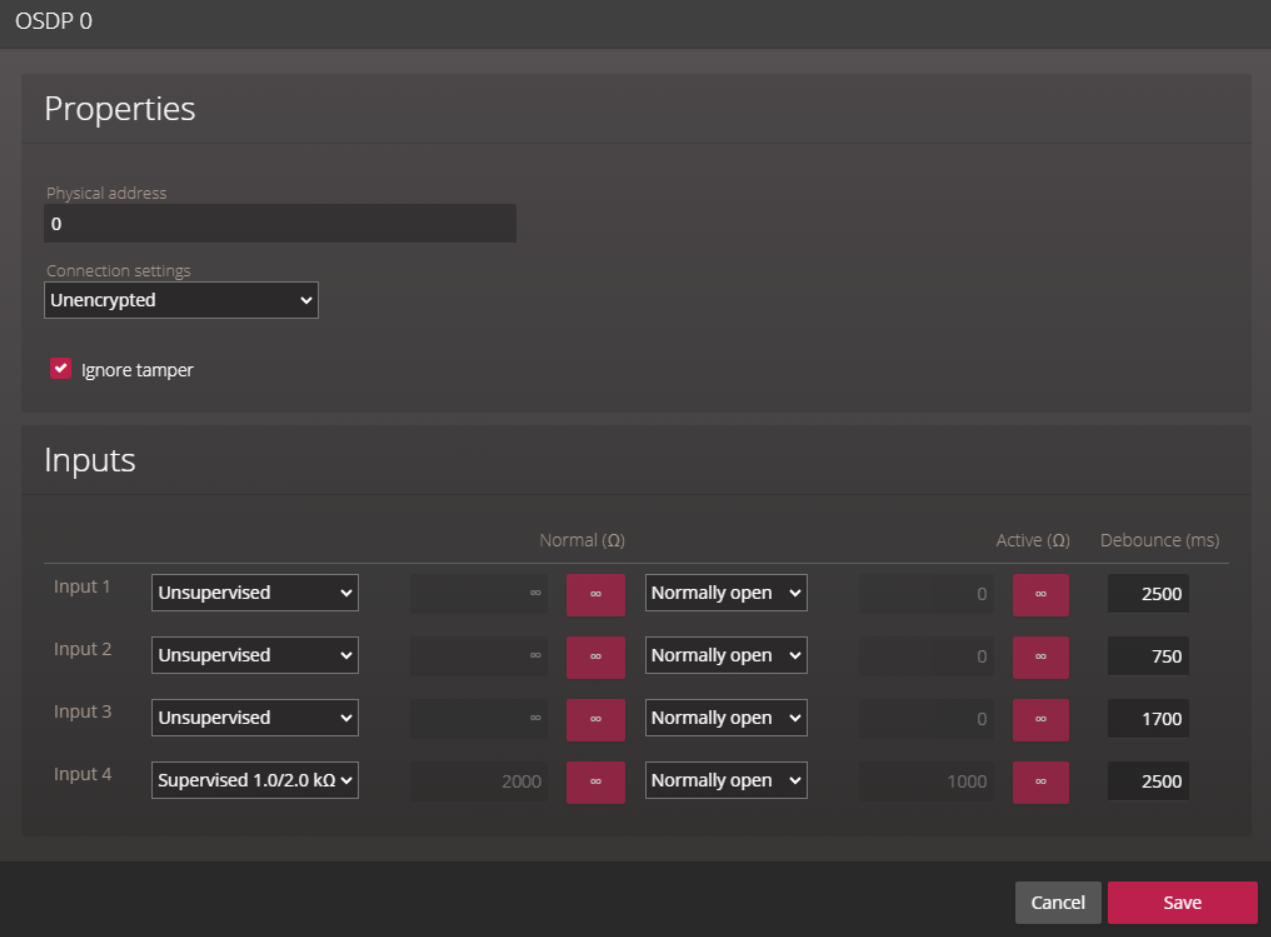
-
From the hardware tree, select the OSDP channel and click Edit
(), then clear the
Programming mode checkbox that you selected while creating the
channel.
-
Add the configured I/O modules:
- At the top of the Address column, click Add (
 ).
). - In the Add hardware dialog box, click Add to add the I/O modules at the addresses you have programmed.
- At the top of the Address column, click Add (