Setting up distinct door modes for the Allegion Schlage wireless lock integration
2025-11-26Last updated
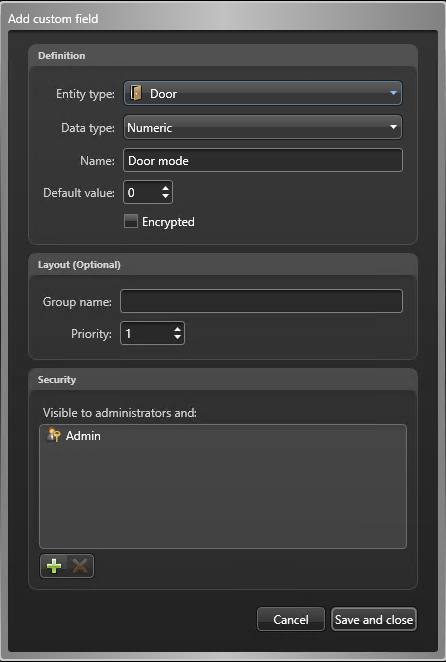
Allegion Schlage wireless locks support multiple door modes designed for different access control scenarios. To use the door modes, you must first create them as a custom field in Config Tool.
What you should know
- 0 - Normal operation
- 1 - Classroom: This mode is not supported
- 2 - Office: Press button to unlock and relock
- 3 - Privacy: Press button to deny all access from outside, press button or REX out to deactivate
- 4 - Apartment: Press button or REX out to unlock, stays unlocked until button press or swipe to relock
Procedure
-
Click the Custom fields tab, and then click Add an
item (
 ) at
the bottom of the custom field list.
The Add custom field dialog box opens.
) at
the bottom of the custom field list.
The Add custom field dialog box opens. -
From the Entity
type list, select Door.